In this area of the TELUS Health Engage Backoffice, you can easily invite your employees to the TELUS Health Engage App and manage access for active or former team members.
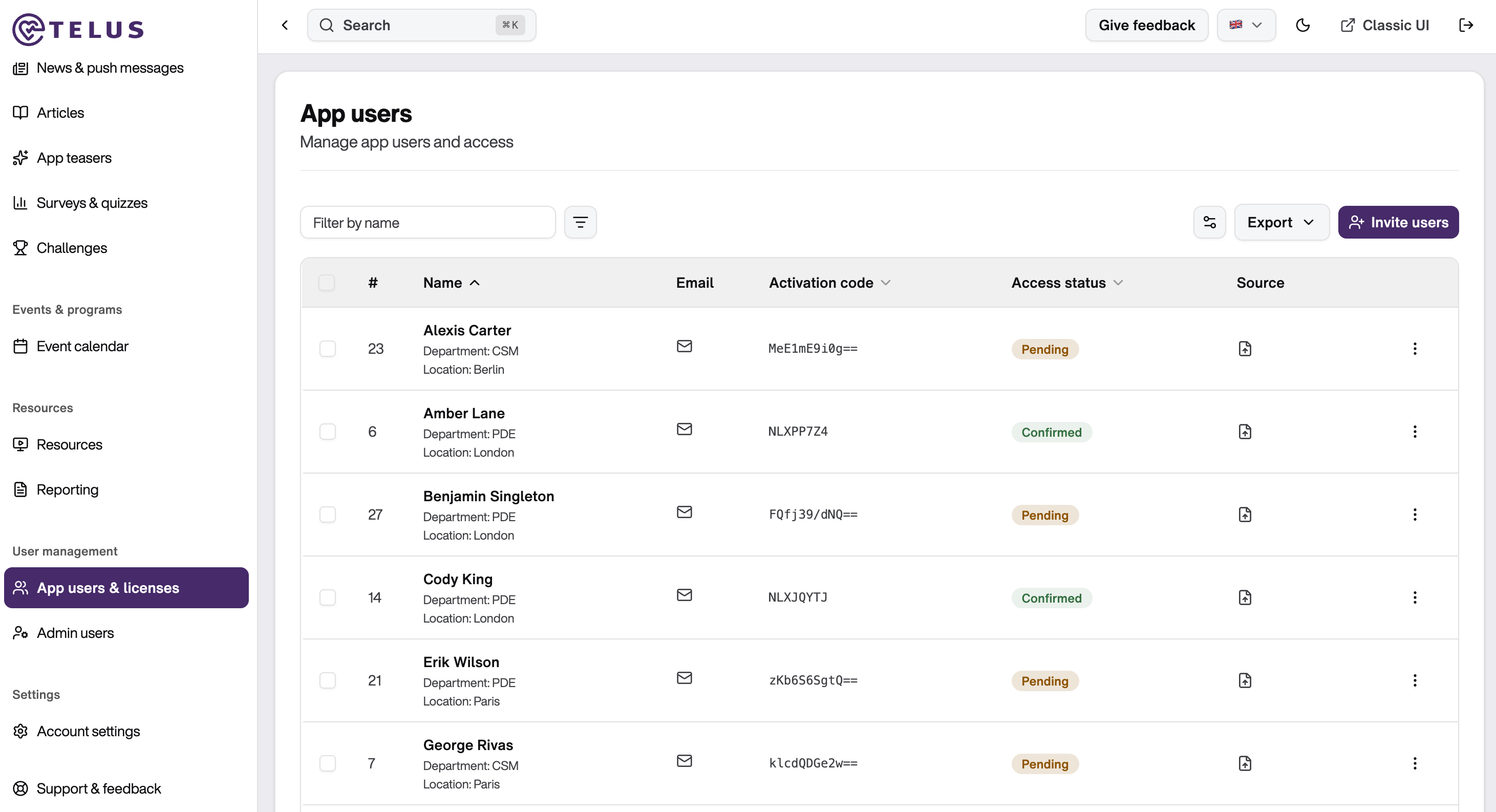
Inviting Team Members
You can find all invitation functions through the "Invite Users" button. You have three options:
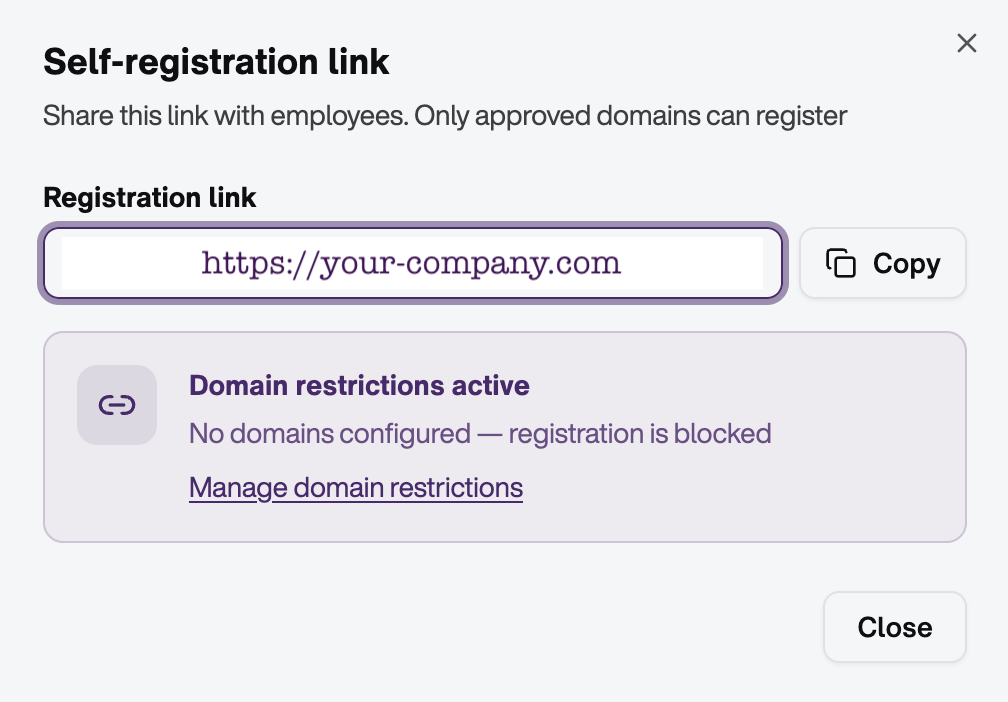
1. Invitation via self-registration link to the landing page
Simply copy the provided link and share it with your employees through your preferred communication channels.
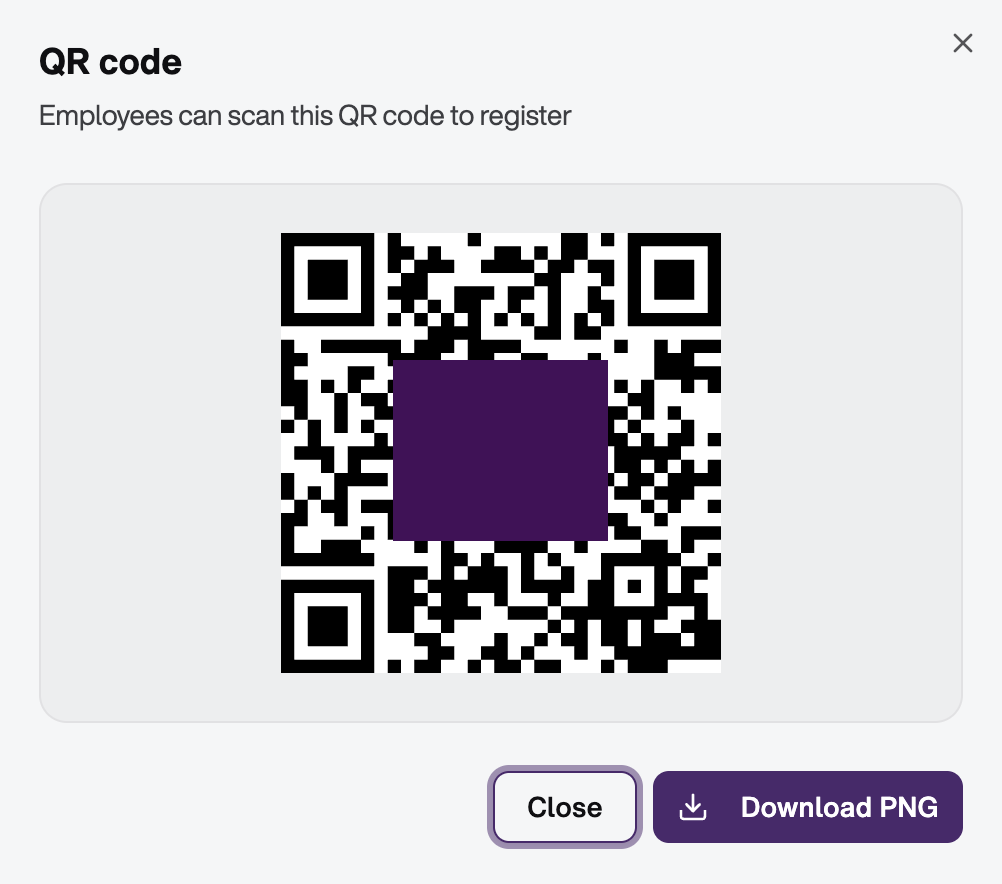
2. Invitation via QR Code
A QR code is automatically generated that you can embed on marketing materials, for example. Once your employees scan the QR code, they can register for the app.
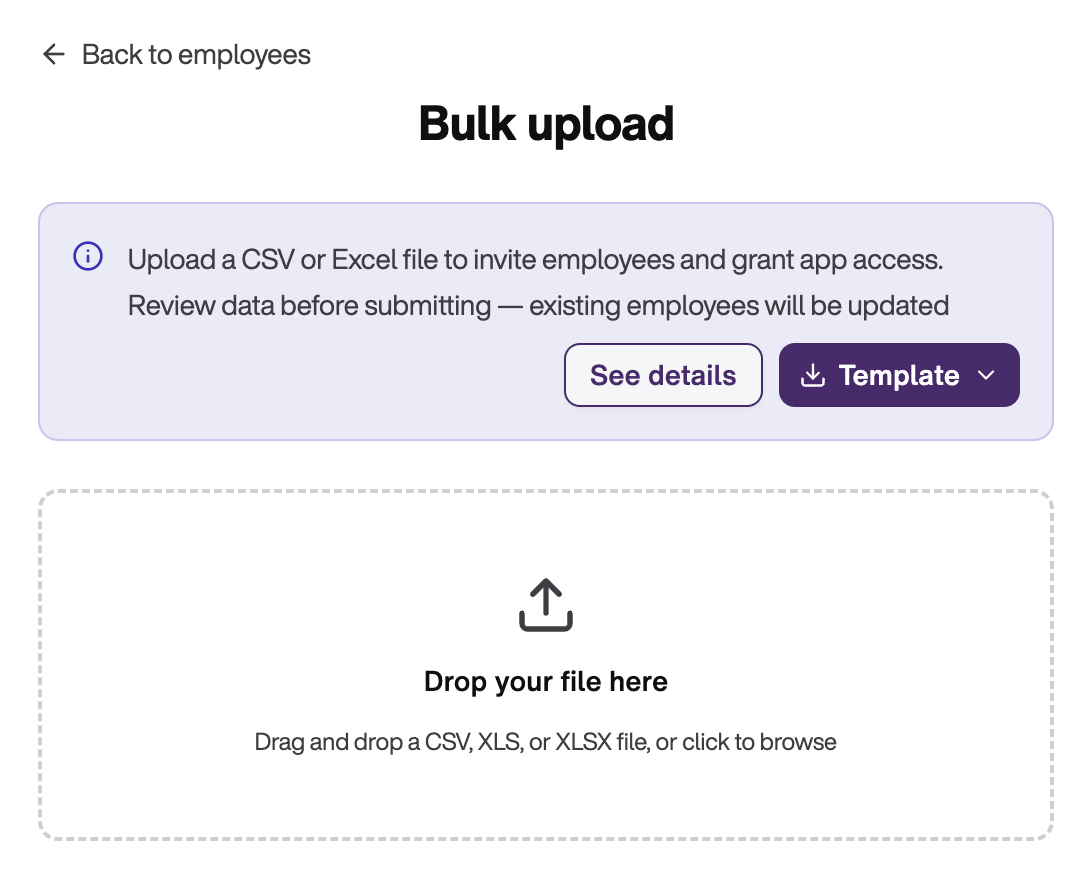
3. Invitation via Bulk Upload
If you want to invite a specific group of employees, you can upload a CSV or Excel file under "Bulk Upload". The file must contain the first name, last name, and email address of the future app users. All invited people automatically receive an invitation email.
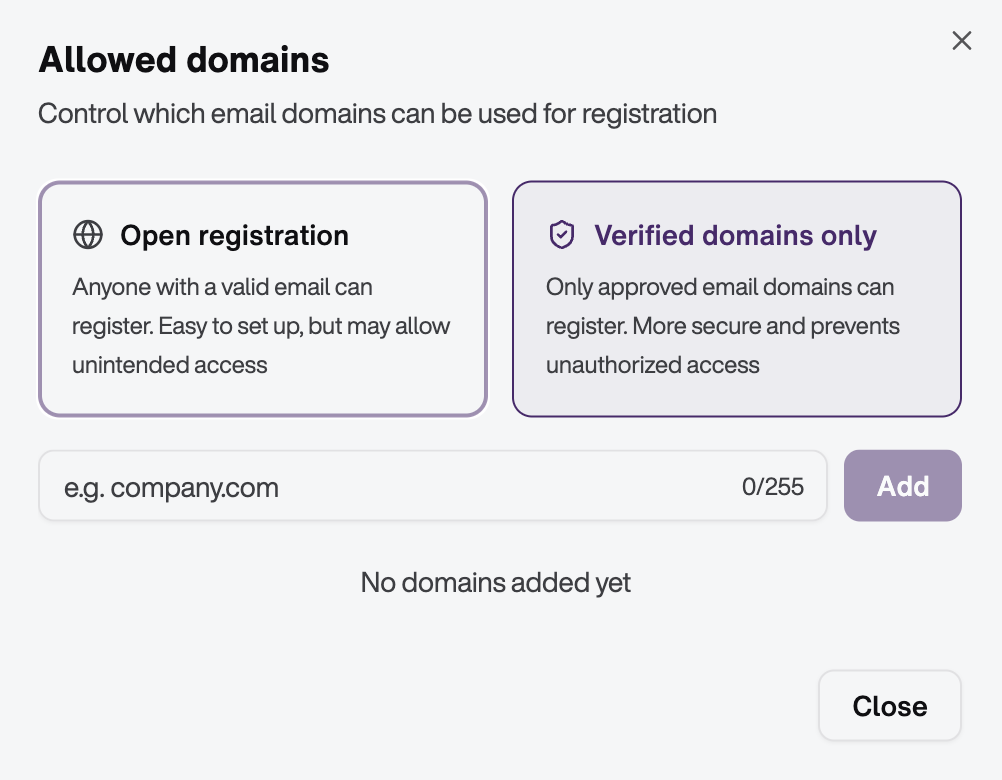
Tip: Do you want to ensure that only people with a company email address can request an ID? Then add the desired email domains of your company under "Allowed Domains".
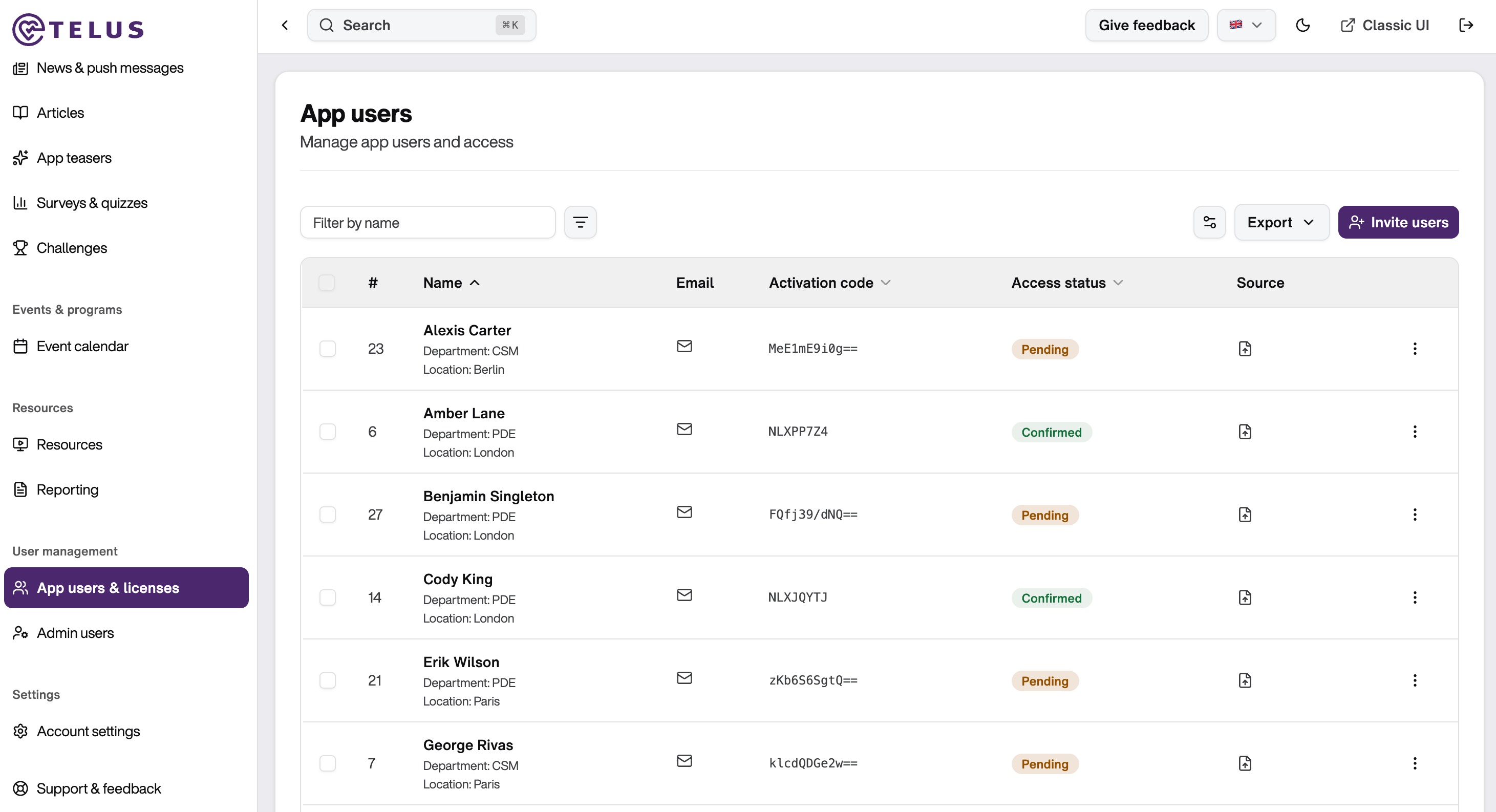
After the rollout, the "App Users" overview will be particularly relevant for you. Here you can manage the status and distribution of your licenses:
- All IDs: All requested licenses – including cancelled or unconfirmed requests.
- Confirmed IDs: All licenses with active access to the TELUS Health Engage app.
- Pending Invitations: IDs that have been requested but not yet activated. Employees must click the link in the invitation email and complete the registration.
- Blocked IDs: All deactivated licenses.
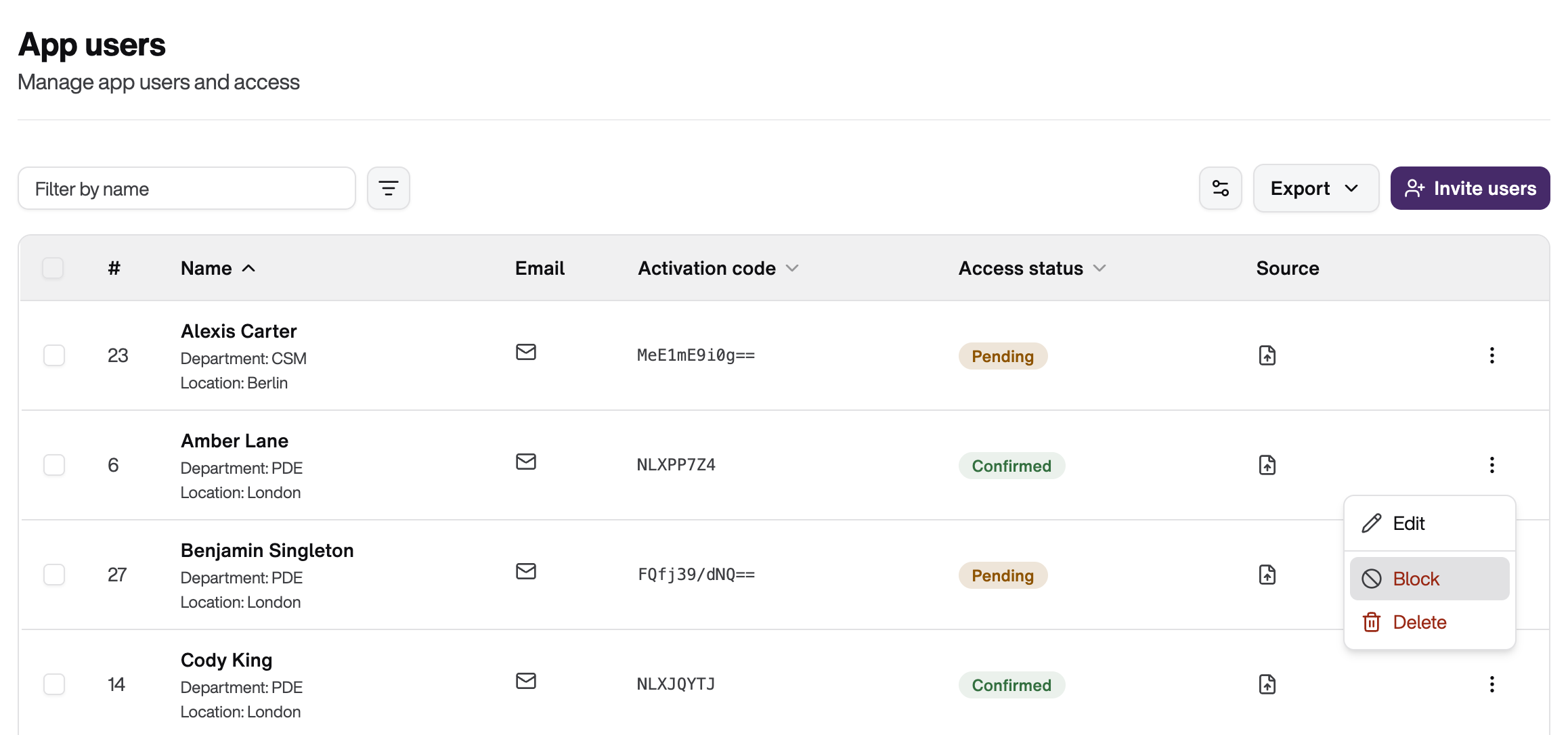
To block an ID (e.g. if an employee leaves the company), search for the relevant person in the “Confirmed IDs” list and click on the button with the lock on the right-hand side.
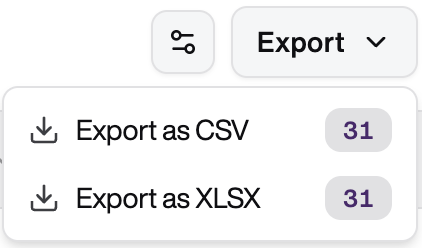
You can use the "Export" button to export a list of app users with selected data columns as a CSV or XLSX file. This allows you to import user data into external systems, create reports, or create a backup copy. Use the filter function (e.g., by department or status) to export only relevant data.
Was this article helpful?
That’s Great!
Thank you for your feedback
Sorry! We couldn't be helpful
Thank you for your feedback
Feedback sent
We appreciate your effort and will try to fix the article