Do you need support working with the TELUS Health Engage Backoffice – or would you like to give colleagues from your company access? Then you can easily create additional Admin Users.
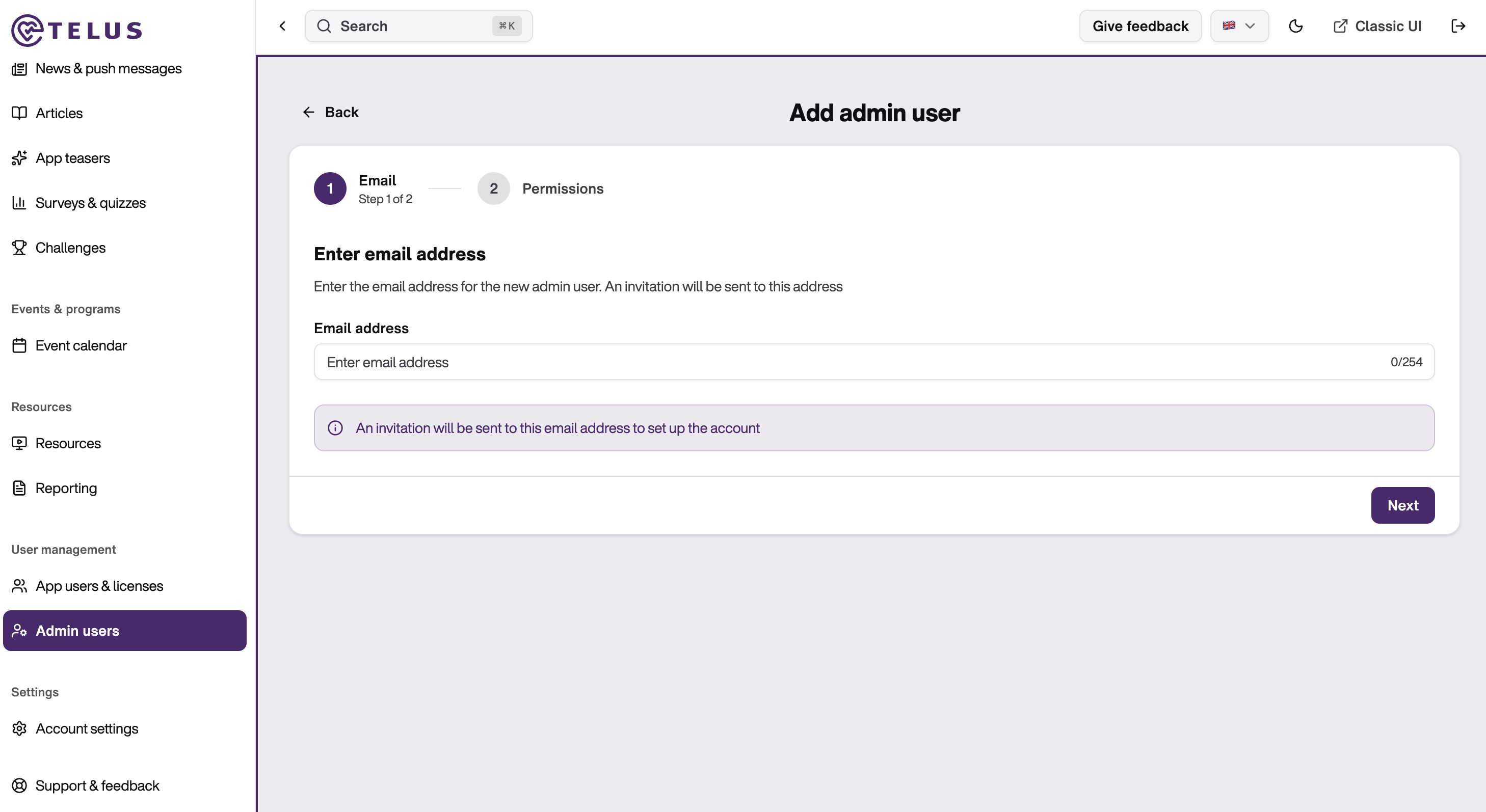
Go to the "Admin Users" section in the "User Management" menu and click on "Create New":
1. Enter the person's email address and click Next.
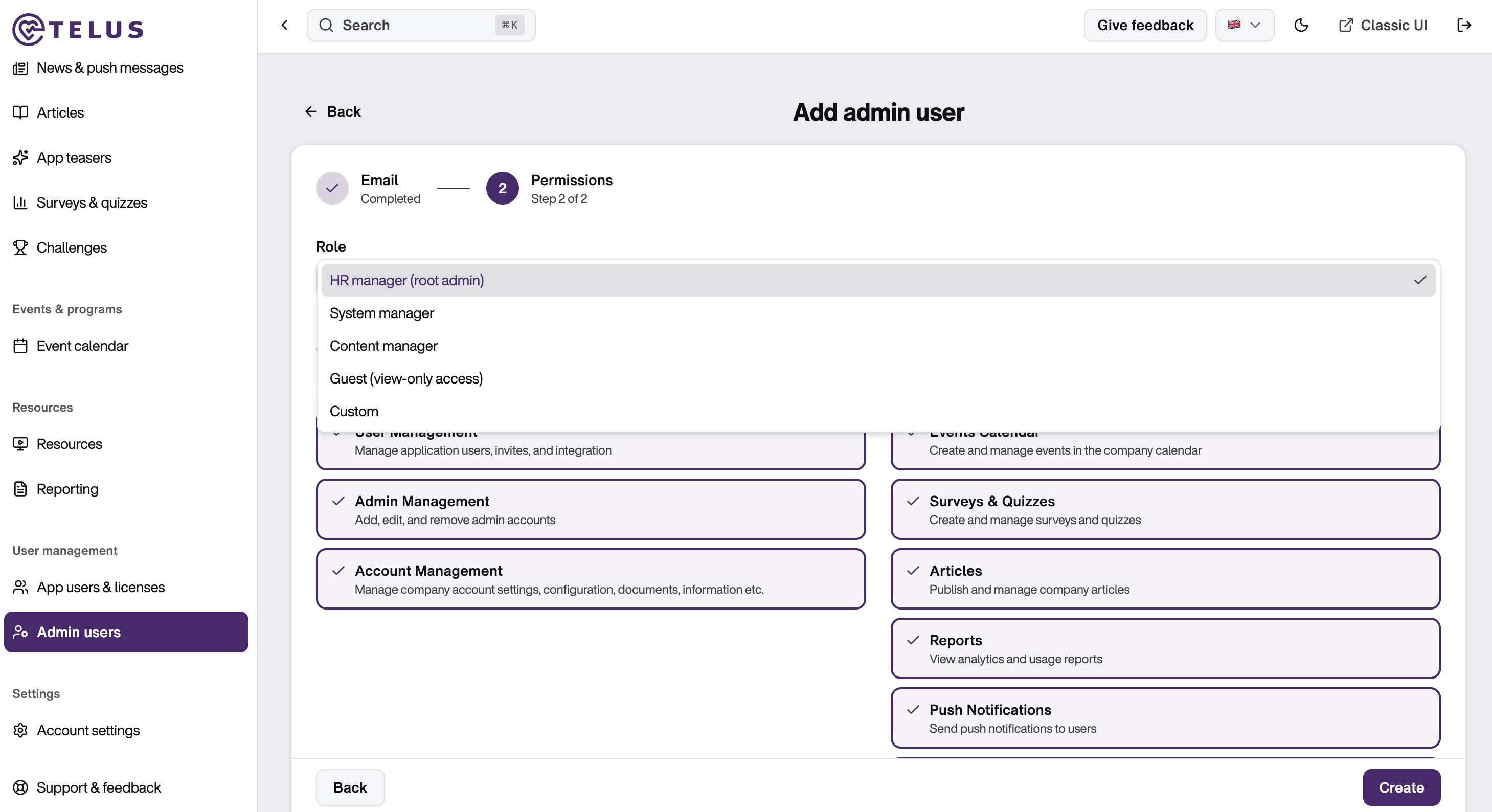
2. Then select one of the predefined roles in the "Permissions" section – or create custom access rights under "Custom" and adjust the permissions as needed. Finally, click on "Save User". An invitation will be sent to this email address to set up the account.
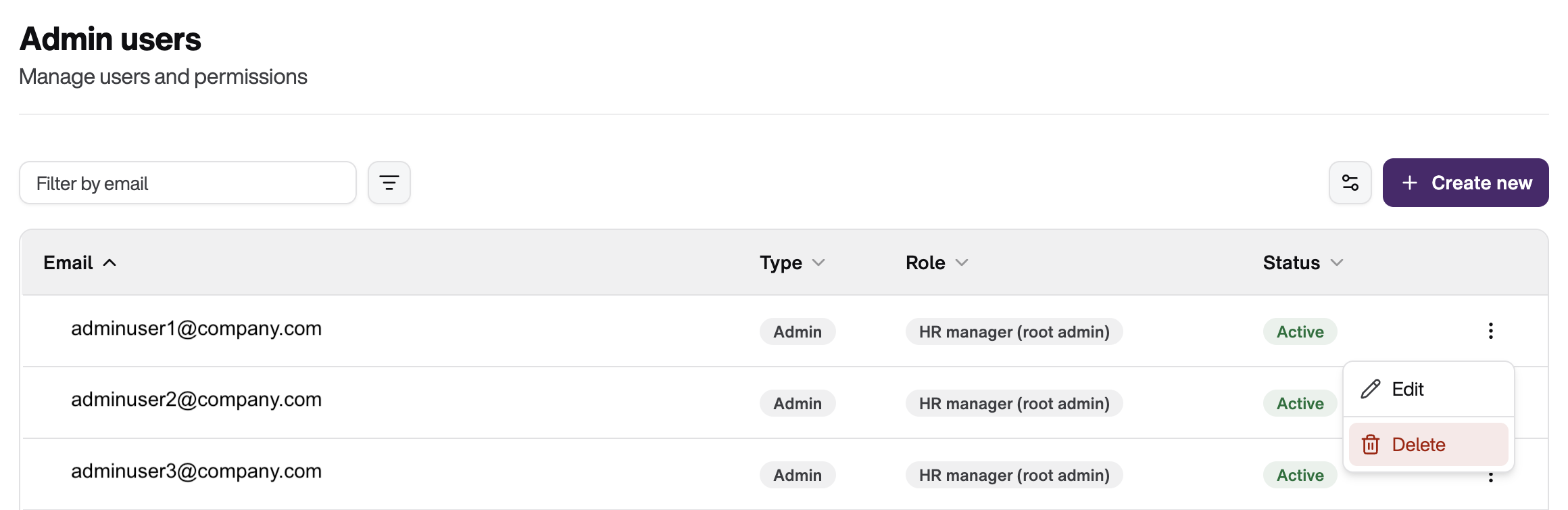
To delete an Admin User, navigate to the "Admin Users" overview. Find the user in the list, click the three dots menu on the right side of their row, and select "Delete". Confirm the deletion when prompted.
Important: There must always be at least one admin user in the system. If you are the only admin, use the Edit function instead of deleting to change the responsible person.
Was this article helpful?
That’s Great!
Thank you for your feedback
Sorry! We couldn't be helpful
Thank you for your feedback
Feedback sent
We appreciate your effort and will try to fix the article