Account settings allow you to manage and update all central information about your contract and your company. Here you can customize your company settings, branding, preferences and other details.
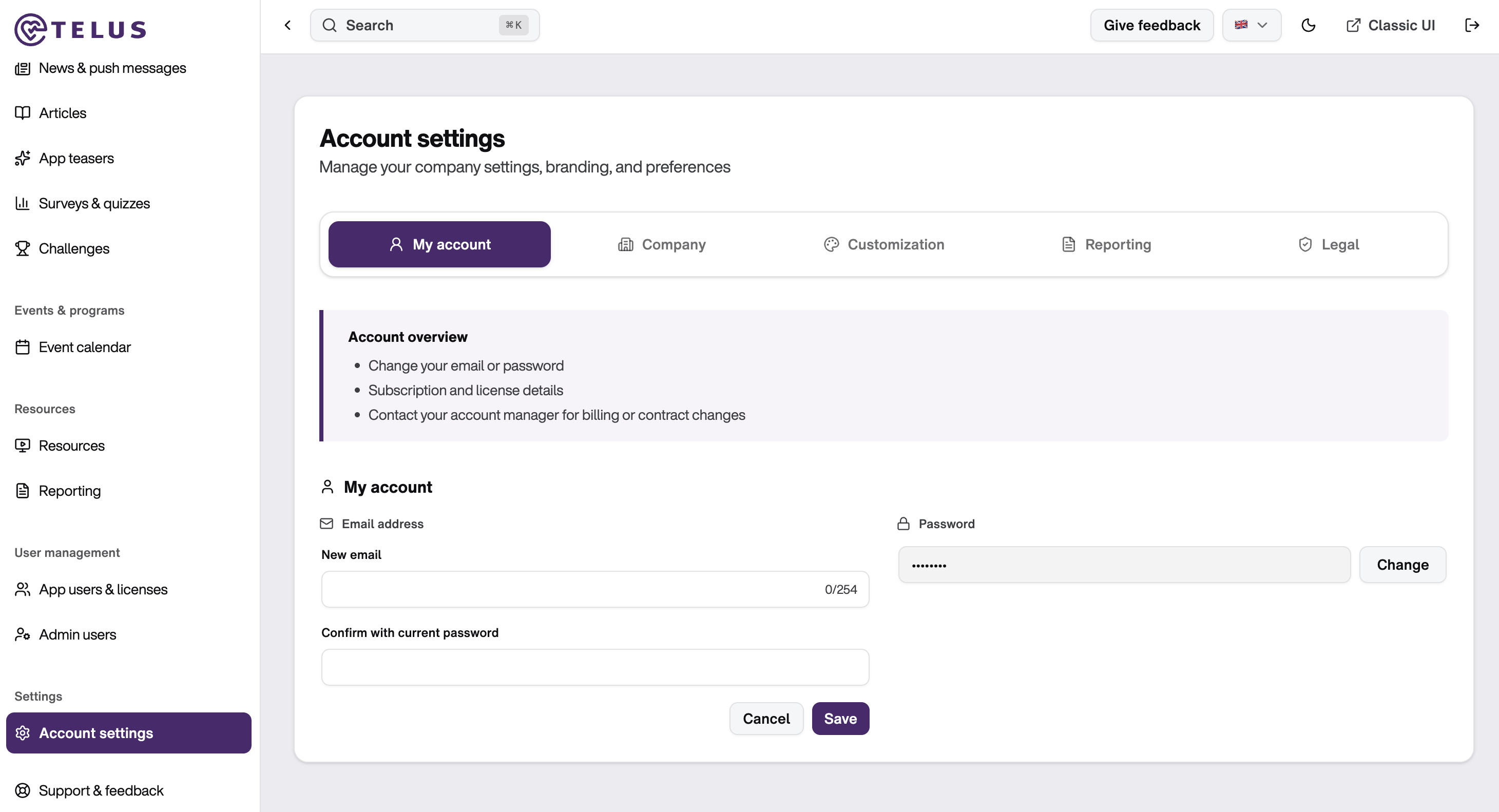
1. My Account
In the My Account tab, you can manage or change your email address for login and notifications as well as your password.
2. Company
In the "Company" tab, you manage all important information about your company and your subscription. Here you can update company details, monitor your license distribution, and view subscription information.
Under "Company Information" you can define the contact person or main contact for your company as well as select the number of employees.
The "Subscription Details" section provides you with a detailed overview of your current subscription and your license usage. This section is divided into several information cards that show you all important details at a glance:
- Number of IDs: Number of currently used IDs in relation to your available licenses
- Status: Current status of your subscription. "Active" and the green dot indicate that your subscription is fully usable
- Renewal Date: Date on which your subscription will automatically renew or change
- Contract Start: Date on which your contract with TELUS Health Engage started
- Contract Term: Indicates how long your contract runs in total

3. Customization
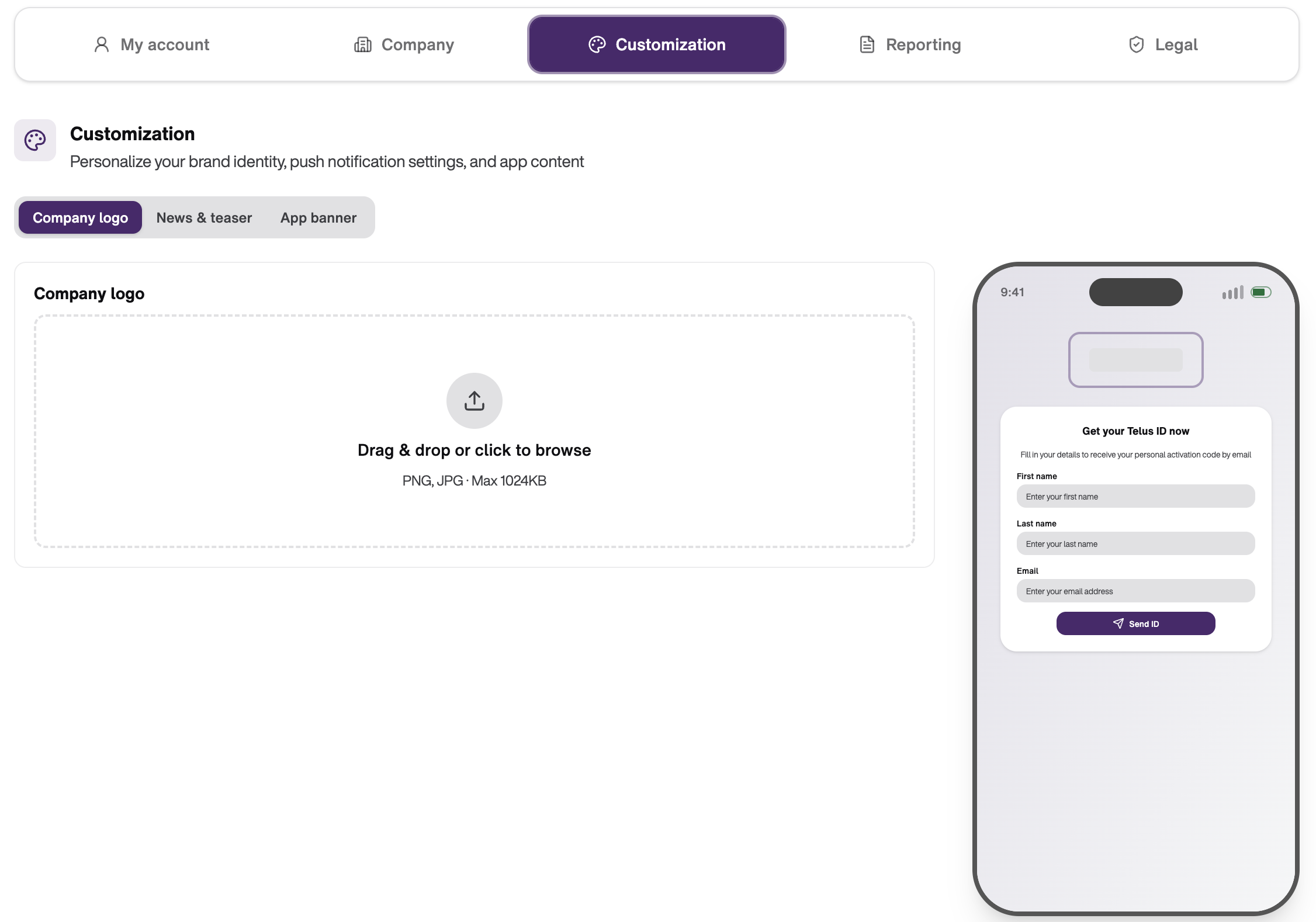
In the "Customization" tab, you can personalize your company branding as well as push notifications and app banners. This allows you to adapt the TELUS app to your corporate design and reach your users with relevant content.
The Customization tab is divided into three subsections: Company logo, News & Teaser, and App Banner. Each section allows you to personalize different aspects of the app according to your preferences. On the right side of the screen, you will see a mobile preview that gives you a realistic impression of how your branding will look in the actual app.
Tip: Is your image too large? With the tool TinyPNG (https://tinypng.com/) you can compress it for free – without loss of quality.
4. Reporting
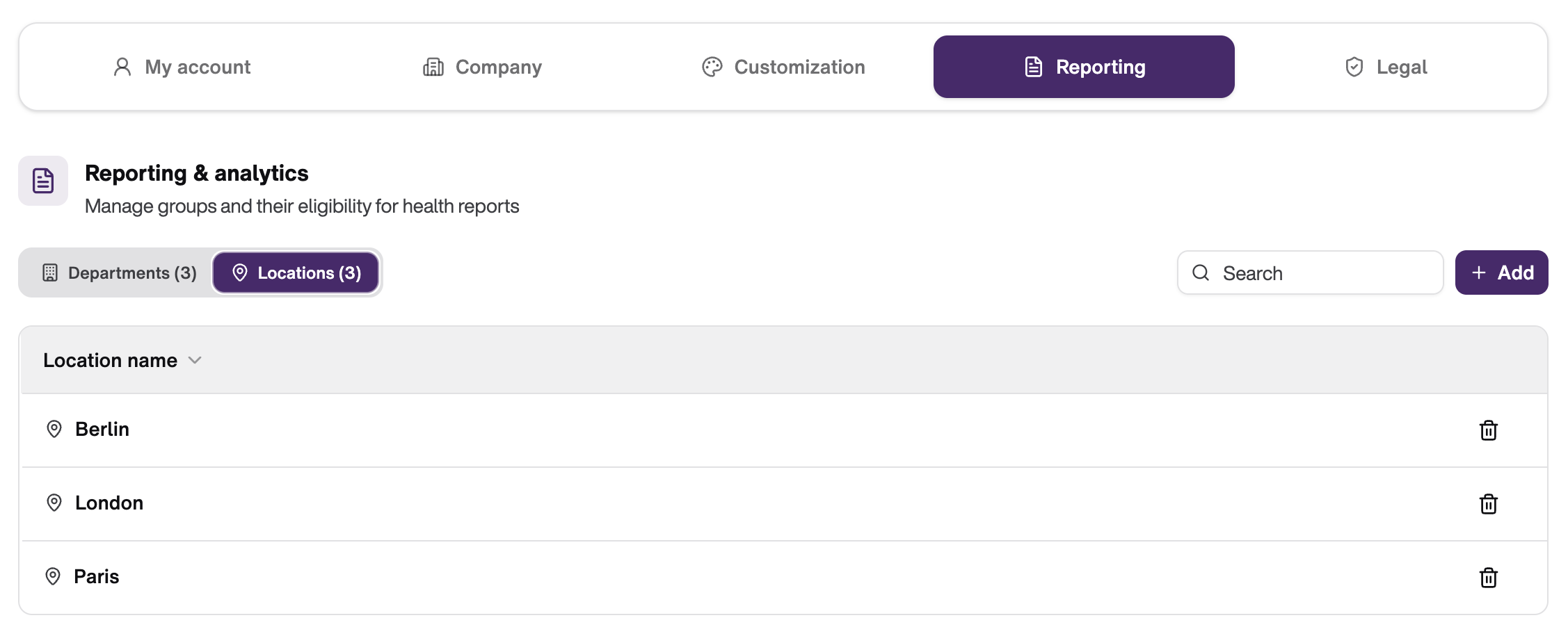
In the Reporting tab, you can manage groups and configure their permissions for health reports. This area allows you to define different departments and locations in your company and control who has access to which health reports. This is important to ensure that sensitive data is only available to the relevant people.
Note: To keep reports anonymous, at least 5 people should be registered per department or location. Our recommendation: Create only departments or only locations – not both.
Additional Benefit: You can selectively share content such as events, news, pushes & teasers for specific groups – by location or department.
Tip for Rollout: Set up this structure before the employee rollout so your teams can assign themselves directly during registration
5. Legal
In the Legal tab, you can view and download important legal and business documents. This area is central for managing all documents related to your subscription and contract. Here you will find all relevant documents in one central location, making it easy for you to archive or share important documents.

Was this article helpful?
That’s Great!
Thank you for your feedback
Sorry! We couldn't be helpful
Thank you for your feedback
Feedback sent
We appreciate your effort and will try to fix the article