News & Push is a great way to reach employees through the TELUS Health Engage app and provide them with important information and news. This is a great way to increase overall engagement within your workforce.
"News messages" are messages sent directly to the inbox of TELUS Health Engage app users. In the app, you can find them in the top right corner by tapping the speech bubble icon.
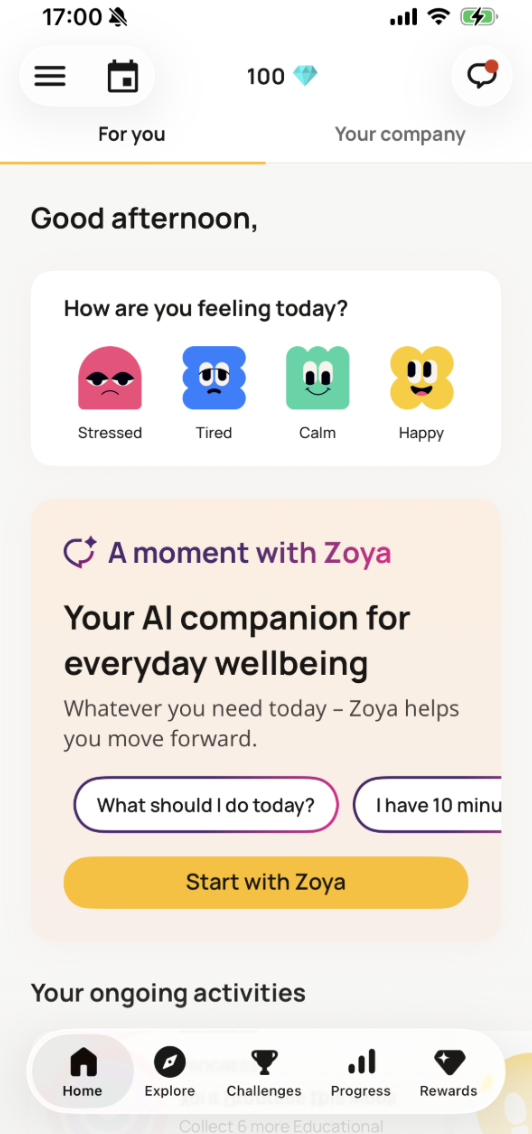
You can also use push notifications to draw attention to news and display them on the home screen of your users' mobile devices. Tapping on the push message will then take them directly to the news.
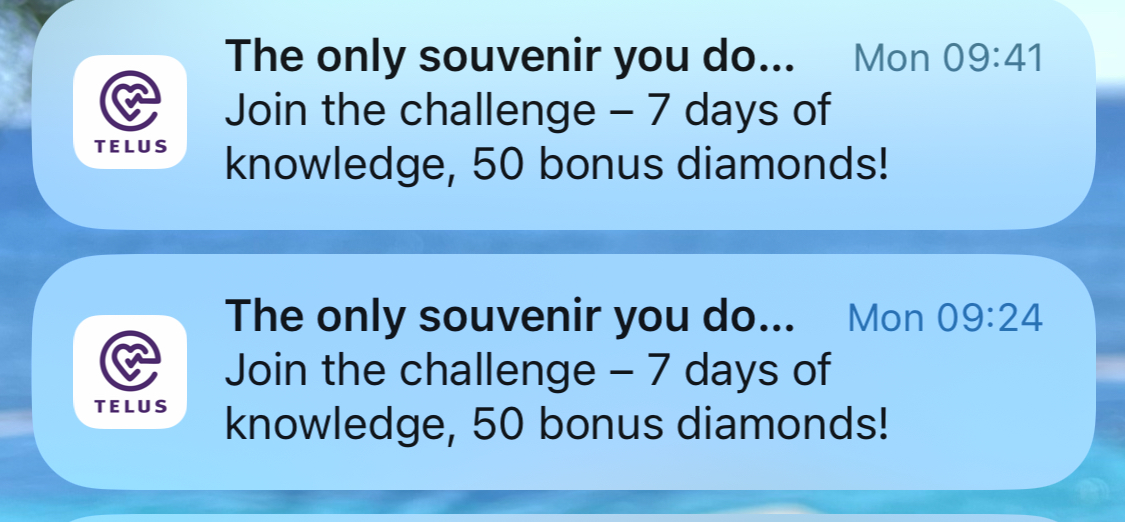
Create and manage push notifications
You can create and manage push notifications for the mobile app by navigating to “News & Push messages” under “Content and engagement” and clicking on “Create new”.
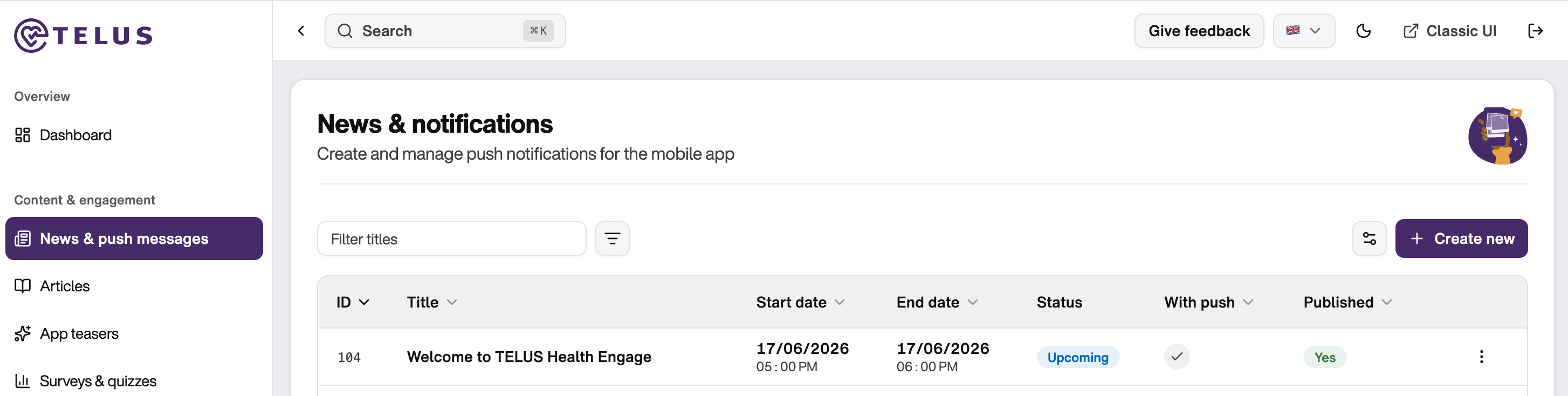
A form will open where you can create your news item in four steps.
Step 1: Content
In the first step, you define the content of your message:
Upload an image (drag & drop or browse; PNG/JPG, max. 1024 KB, 1:1 format)
Add a title (max. 50 characters), subtitle (max. 50 characters), and description (max. 200 characters)
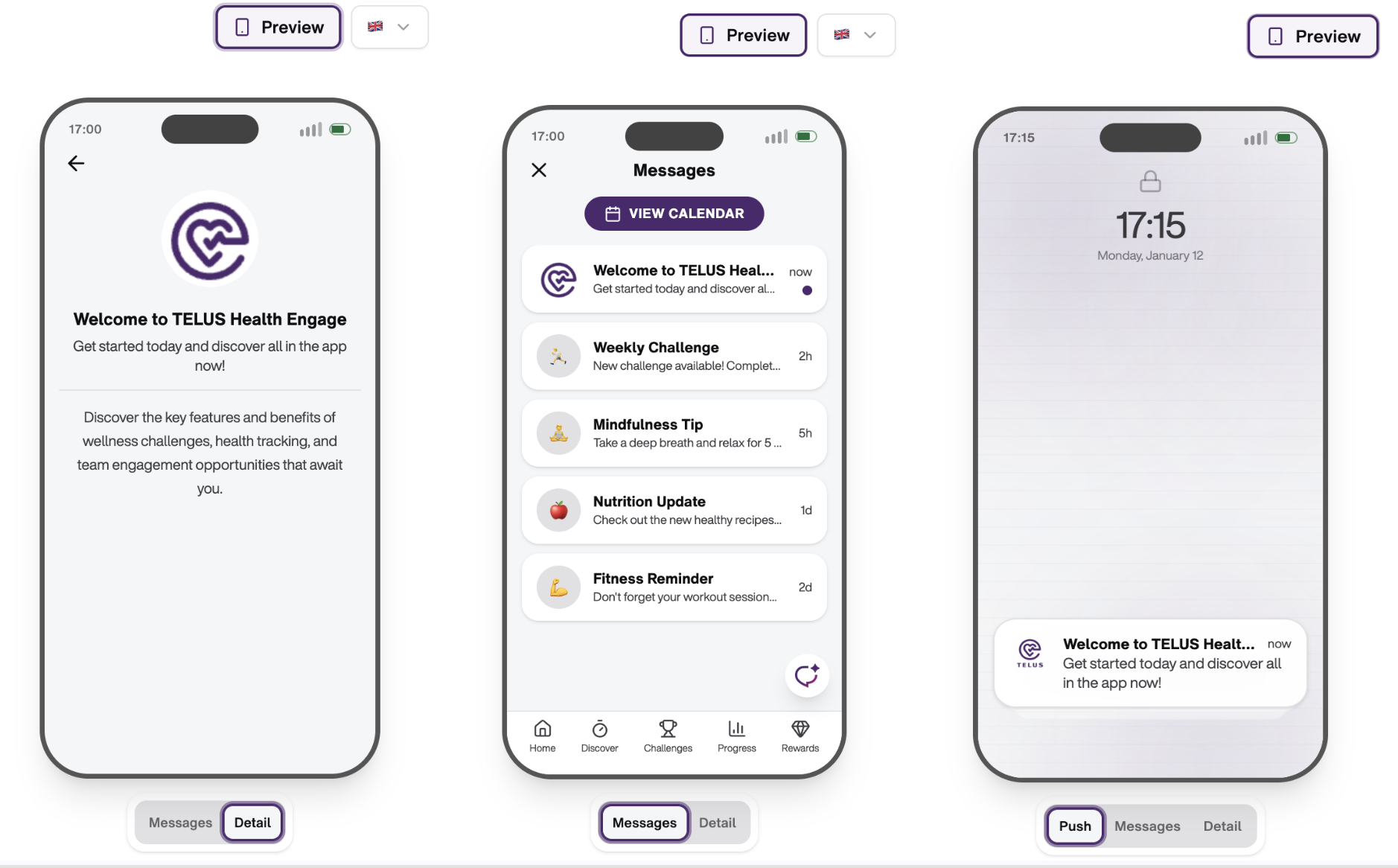
While creating your message, a live preview is displayed on the right side of the screen.
You can switch between different preview modes:
Detail: shows the detailed view of the message
Messages: shows how the message appears in the inbox of the app
If you enable a push notification, an additional preview tab called “Push” will appear below the smartphone preview. This allows you to see exactly how the push notification will be displayed on the user’s device.
Although character limits are shown in the form, we recommend using the live preview as your primary guide. It provides the best indication of how the final message will appear to employees and helps ensure that your content is displayed clearly and effectively.
Step 2: Schedule
Click “Next: Schedule” in the bottom right corner to define when your message should be published.
Here you can:
Set the start and end date and time
Enable and schedule a push notification for your message
Step 3: Link target (optional)
In this step, you can optionally add a target to your message.
You can link to:
Event calendar
Quiz
Survey
Survey result
External URLs (e.g. websites or articles)
These elements must already exist before they can be linked.
You can also add a call-to-action button text if a target type has been selected.
If the target type is set to “No CTA”, you can still send the message as an informational update (e.g. for announcements or welcome messages).
Step 4: Targeting
Click “Next: Targeting” to define who should receive the message:
Everyone: all employees across the organization
Custom: specific departments and/or locations
If you want to target specific groups, make sure they are already set up under Settings → Account settings → Reporting, where departments and locations can be managed.
Final step: Save or schedule
Once all four steps are completed, you can:
Save as draft → the message will be stored in News & Notifications, where you can edit or delete it via the three-dot menu
Save & schedule → the message will be published according to your defined schedule
Important notes
News items can only be edited until their scheduled start time. After the start time, they can no longer be edited or reused. If a push notification or in-app message has already been sent or published, it cannot be recalled or withdrawn.
If a news item is linked to a push notification, it can no longer be edited after scheduling. Push notifications are delivered at least 15 minutes after publication to ensure proper synchronization in the app.
Push notifications are only received if users have enabled notifications for the TELUS Health Engage app on their device. To enable them, the user has to open the app home screen and tap the icon with the three horizontal bars in the top left corner. This opens a menu with several options. The user then needs to tap “Reminder” and select “Allow notifications from the app”.
Emojis are not supported in titles, subtitles, or descriptions and will result in an error when saving the message.
- To keep the inbox clear and relevant, we recommend keeping news items visible for a maximum of one to two weeks.
News items cannot currently be targeted by operating system (Android/iOS). The same message is delivered to all selected users regardless of device type.
Best practices
News and push notifications are a great way to engage employees outside of the workplace. However, they should be used thoughtfully. Before sending a message, ask yourself: "Is this information important and valuable for employees?"
Avoid sending messages too frequently, especially push notifications. Messages without clear value, such as routine greetings, can reduce engagement over time. Use push notifications for information that employees should not miss, such as:
Important company announcements
Event registrations
Surveys requiring participation
Time-sensitive updates
Writing effective news messages
Create a clear title
Your title should summarize the content of the message in as few words as possible. Avoid abbreviations and focus on the main takeaway.
Ask yourself: "What is this news about?"
Add context with a subtitle
Use the subtitle to provide additional information, such as dates, deadlines, or key details that encourage employees to engage with the content.
Write a concise description
The description should explain why employees are receiving the message and what action, if any, is expected from them. Consider:
Why is this information relevant?
What should employees know or do?
Use a strong call to action
If your message includes a CTA button, make sure the button text clearly communicates what happens when employees click it.
Examples:
Register now
Complete survey
Read article
Learn more
Examples
1. Welcome message
Title: Welcome to the TELUS Health Engage
Subtitle: Get started & explore the app today
2. Office Yoga
Title: Join Office Yoga
Subtitle: Sign up now and reserve your spot
3. Survey
Title: Your opinion matters
Subtitle: Take the Health Day survey and share feedback
Was this article helpful?
That’s Great!
Thank you for your feedback
Sorry! We couldn't be helpful
Thank you for your feedback
Feedback sent
We appreciate your effort and will try to fix the article