Surveys and quizzes are a great way to engage employees within the TELUS Health Engage app. While surveys help you collect feedback and opinions from your workforce, quizzes allow you to test knowledge in a fun and interactive way. They can also be used to educate employees on specific health and wellbeing topics.
Under the "Content & Engagement" menu, navigate to "Surveys & Quizzes" and click "Create new" in the top right corner.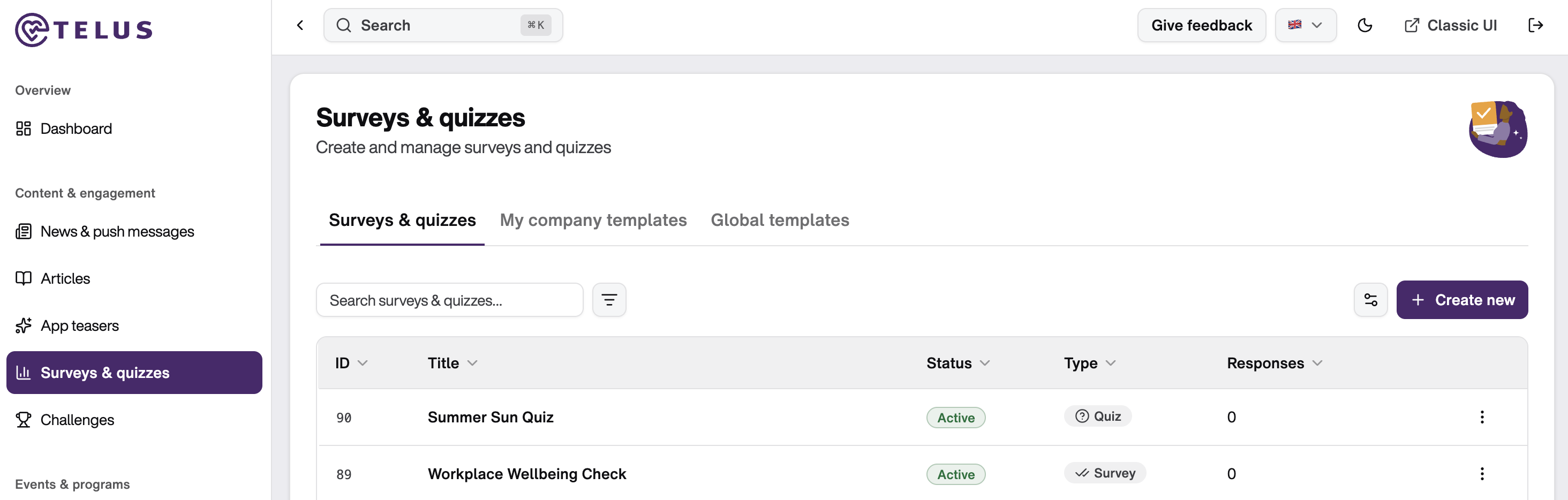
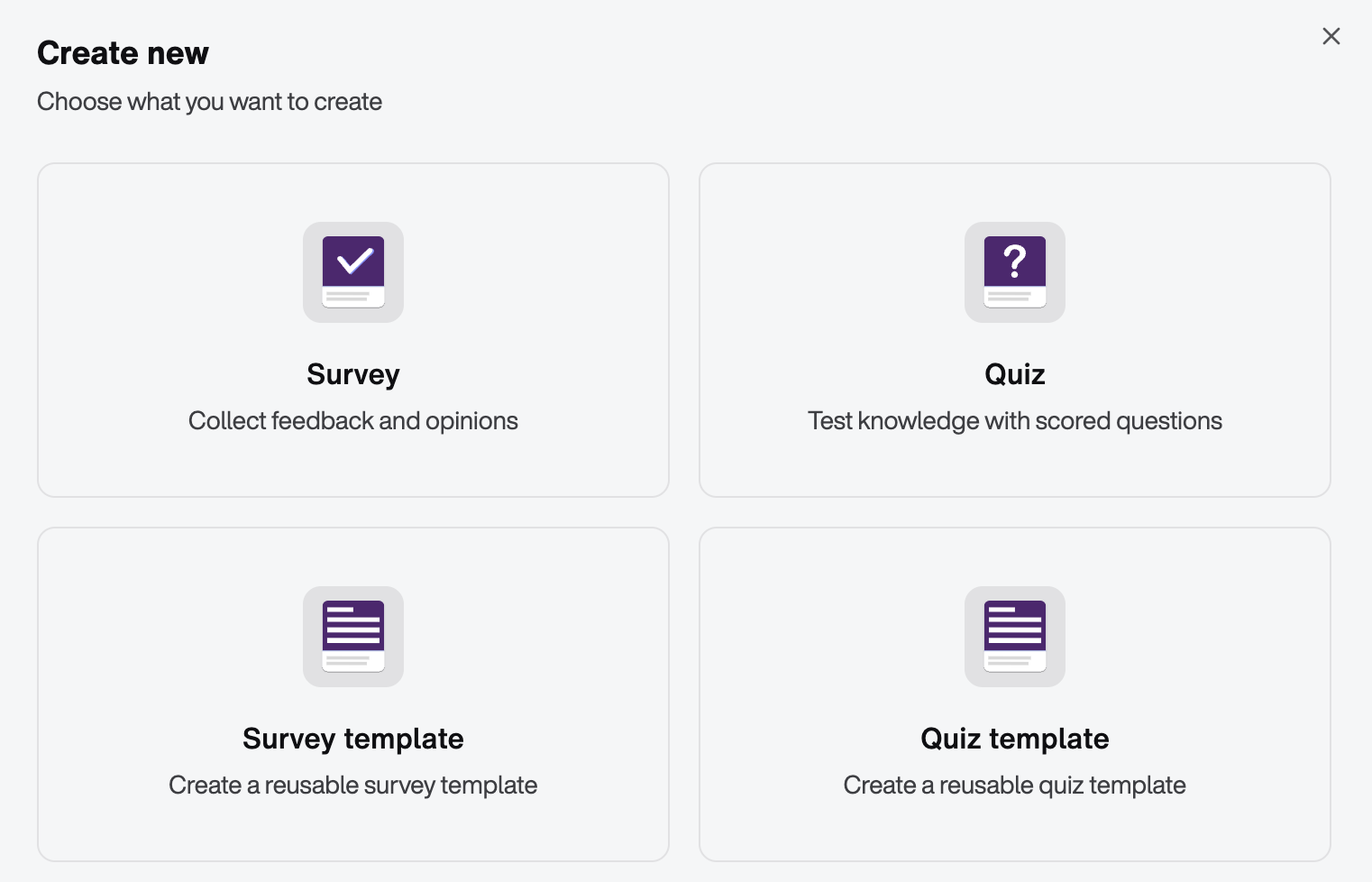
A form will open where you can choose what you would like to create:
Survey → collect feedback and opinions
Quiz → test knowledge with scored questions
Survey template → create a reusable survey template
Quiz template → create a reusable quiz template
Create a Survey
When selecting Survey, you will be guided through two steps.
Step 1: Basic Information
In the first step, define the general settings of your survey:
If you would like to use an existing template, simply select it from the dropdown menu. All settings and questions from the template will be copied into your new survey and can be edited as needed.
To create a survey from scratch, select "No template" in the Use template field.
Enter a title (max. 30 characters).
Add a description (max. 400 characters).
Optionally enable One response per user if employees should only be allowed to submit the survey once.
A live preview is displayed on the right side of the screen, showing how the survey introduction will appear in the app when employees open it. Although character limits are displayed in the form, we recommend using the live preview as your primary guide. It provides the best indication of how the survey content will be displayed to employees and helps ensure a clear and user-friendly experience.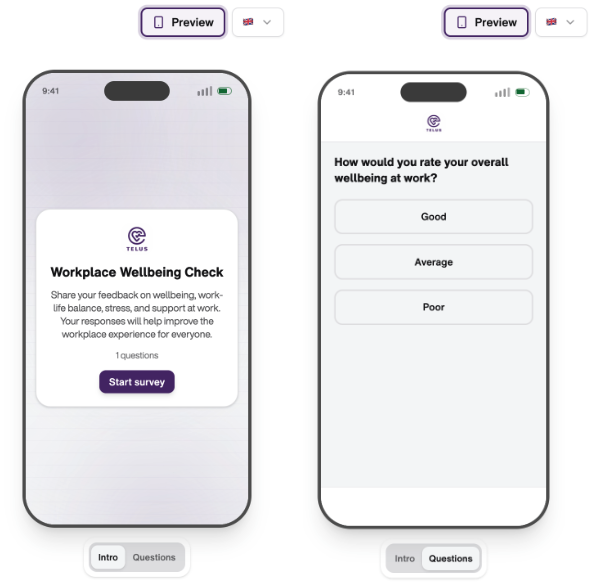
Step 2: Add Questions
Click "Next: Add Questions" in the bottom right corner to create the questions for your survey.
You can choose from the following question types:
- Multiple choice
- Single choice
- One-line text
- Multi-line text
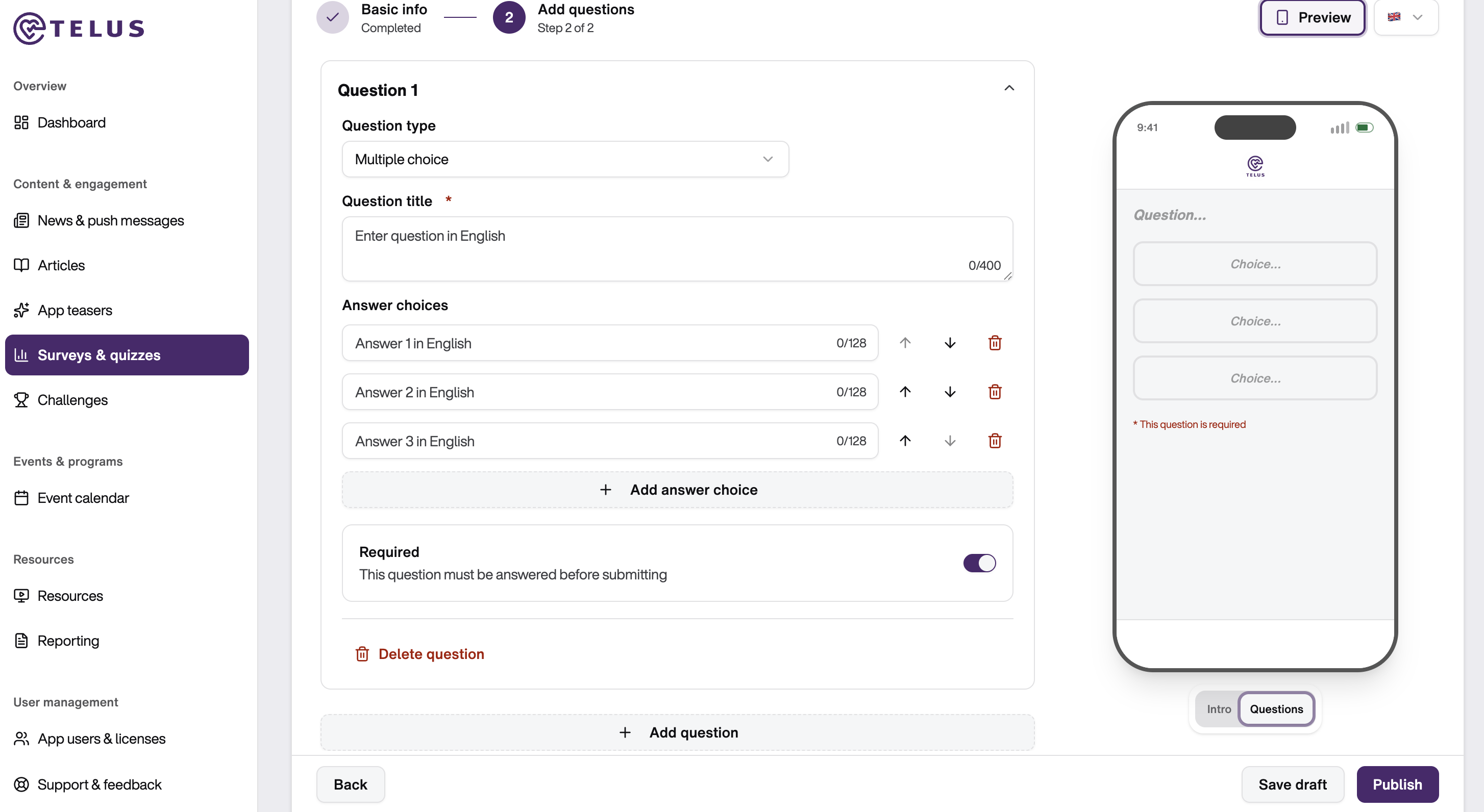
When selecting a question type, enter a clear and concise question title. As with the survey introduction, a live preview is displayed on the right side of the screen. We recommend using this preview as guidance when writing your questions, as it shows exactly how employees will see them in the app.
- For Multiple Choice and Single Choice questions, add the available answer options. The order of answer options can be adjusted at any time using the arrow buttons.
- For One-Line Text and Multi-Line Text questions, only the question title is required.
- As a final step for each question, you can decide whether the question is mandatory or optional by enabling or disabling the required field setting.
- Repeat this process until all required questions have been added to your survey.
Final Step: Save Draft or Publish
Once all questions have been added, you can:
- Save as draft → the survey will be stored in Surveys & Quizzes, where it can be edited or deleted later via the three-dot menu.
- Save & Publish → the survey will immediately become available to employees.
Manage Surveys
In the Surveys & Quizzes overview, you will find a list of all surveys and quizzes that have been created.
By clicking the three-dot menu next to a survey you can:
- Share it via a public link, allowing employees who do not use the app to participate through their web browser.
- Share the survey results.
- Download the results as an Excel file.
- Edit the survey (if it is still available for editing).
- Preview the survey as it will appear on employees’ smartphones or desktop devices.
- Delete the survey.
Please note that survey results can only be shared or exported once at least five employees have participated in the survey.
Create a Survey Template
In addition to one-time surveys, you can create reusable survey templates.
To do so, click "Create new" and select "Survey Template". The creation process is identical to creating a standard survey.
Survey templates allow you to:
Reuse frequently used survey formats
Save time when creating recurring surveys
Maintain consistent survey structures across your organization
You can also define the estimated duration of the survey, helping employees understand how much time participation will require.
If the survey is not yet ready to be published, activate the Draft option and continue editing it later. Draft surveys can be previewed at any time from the survey overview.
Best Practices
Suitable Occasions for Surveys
Surveys are an effective way to gather employee feedback and insights. They are particularly valuable when collecting sensitive or confidential information, as participants can provide honest feedback in a secure environment.
Examples include:
- Event feedback surveys after workshops, webinars, or company events
- Employee satisfaction surveys
- Workplace wellbeing assessments
- Feedback on internal initiatives or programs
Create Effective Surveys
- To maximize participation and completion rates, keep surveys concise and focused.
- As a general guideline, we recommend using between 3 and 10 questions.
If a survey requires more questions, clearly communicate its purpose and value to employees to encourage participation.
To improve the survey experience:
- Start with broad, general questions before moving to more detailed topics.
- Keep language simple and easy to understand.
- Avoid leading or biased questions.
- Use neutral wording to ensure honest and realistic feedback.
- When using rating scales, choose an odd number of response options (for example 1–5) to provide a neutral middle option.
Depending on local regulations and company policies, it may also be advisable to involve employee representatives or works councils when creating larger surveys.
Maximize Participation
To ensure employees are aware of your survey, promote it through multiple communication channels.
We recommend:
- Announcing the survey through News & Push messages
- Creating teaser content to generate interest
- Highlighting deadlines and participation benefits
- Enabling publication via News & Push when available
For important surveys, consider offering small incentives or prizes to encourage participation.
After the survey has closed, communicate the results back to employees whenever possible. Sharing key findings demonstrates that employee feedback is valued and can significantly increase participation rates in future surveys.
Was this article helpful?
That’s Great!
Thank you for your feedback
Sorry! We couldn't be helpful
Thank you for your feedback
Feedback sent
We appreciate your effort and will try to fix the article