Surveys and quizzes are effective tools for engaging employees within the TELUS Health Engage app. While surveys help you gather feedback, opinions, and insights from your workforce, quizzes provide an interactive way to test knowledge and reinforce learning. Quizzes can also be used to educate employees on health and wellbeing topics in an engaging format.
Navigate to Content & Engagement, open Surveys & Quizzes, and click Create New in the top-right corner to get started.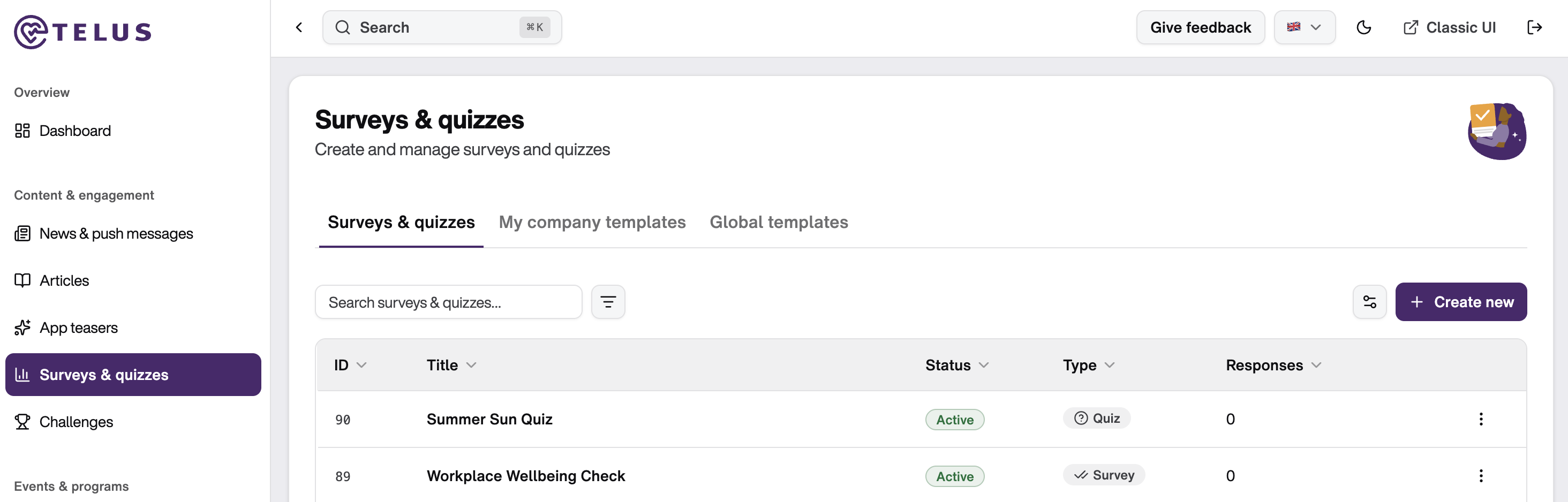
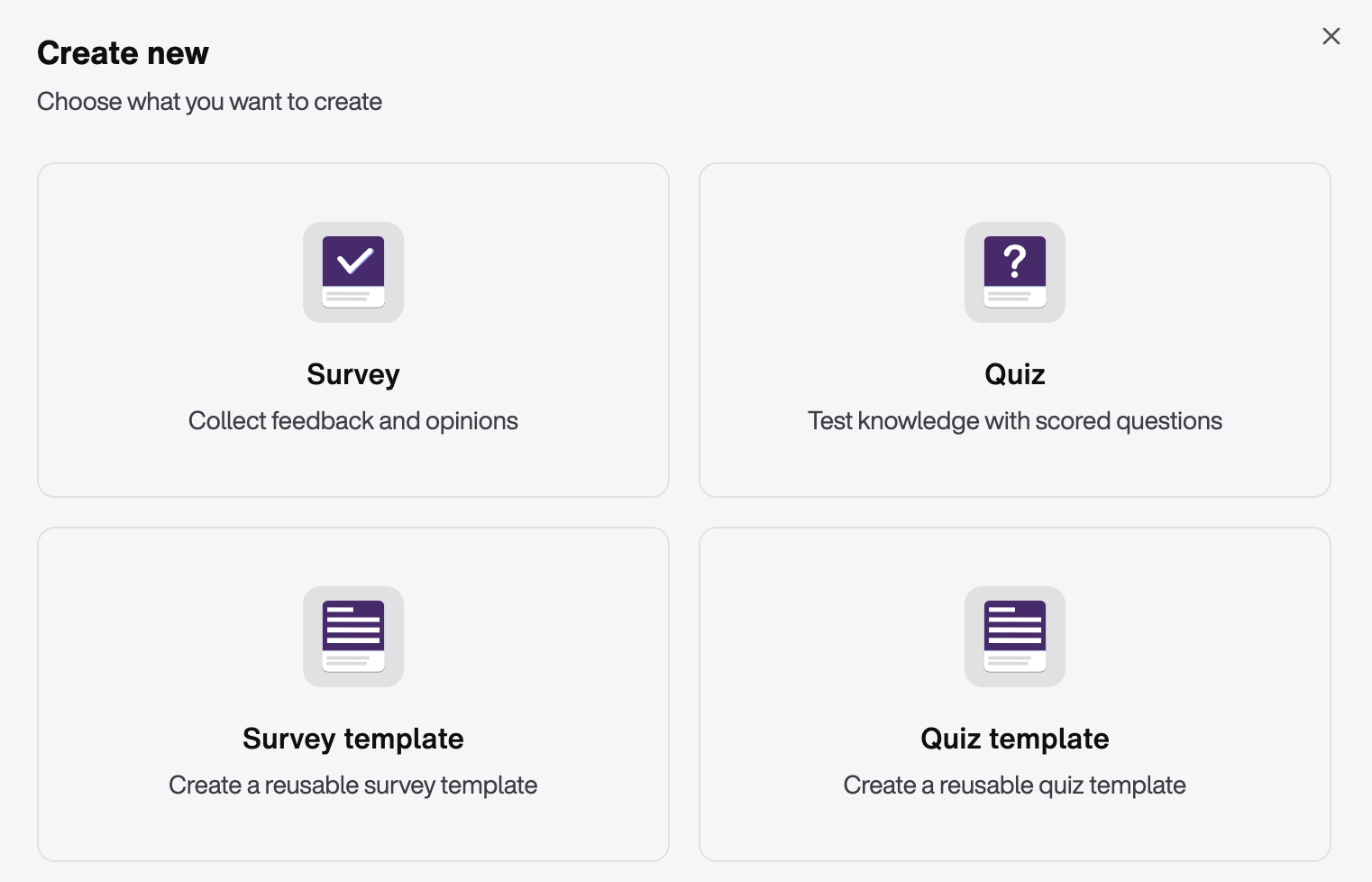
You can choose from the following options:
Survey → Collect feedback and opinions from employees.
Quiz → Test knowledge with scored questions.
Survey Template → Create a reusable survey template.
Quiz Template → Create a reusable quiz template.
Create a Quiz
When you select Quiz, you will be guided through two steps.
Step 1: Basic Information
First, define the general settings for your quiz:
- If you would like to base your quiz on an existing template, select it from the Use Template dropdown menu. All settings and questions from the template will be copied into your new quiz and can be edited as needed.
To create a quiz from scratch, select No Template.
Define the Quiz Threshold by entering the percentage of correct answers required to pass the quiz.
Enter a Title (maximum 30 characters).
Add a Description (maximum 400 characters).
A live preview is displayed on the right side of the screen, showing how the quiz introduction will appear to employees in the app. While character limits are provided, we recommend using the preview as your primary guide to ensure the content is clear, concise, and visually appealing.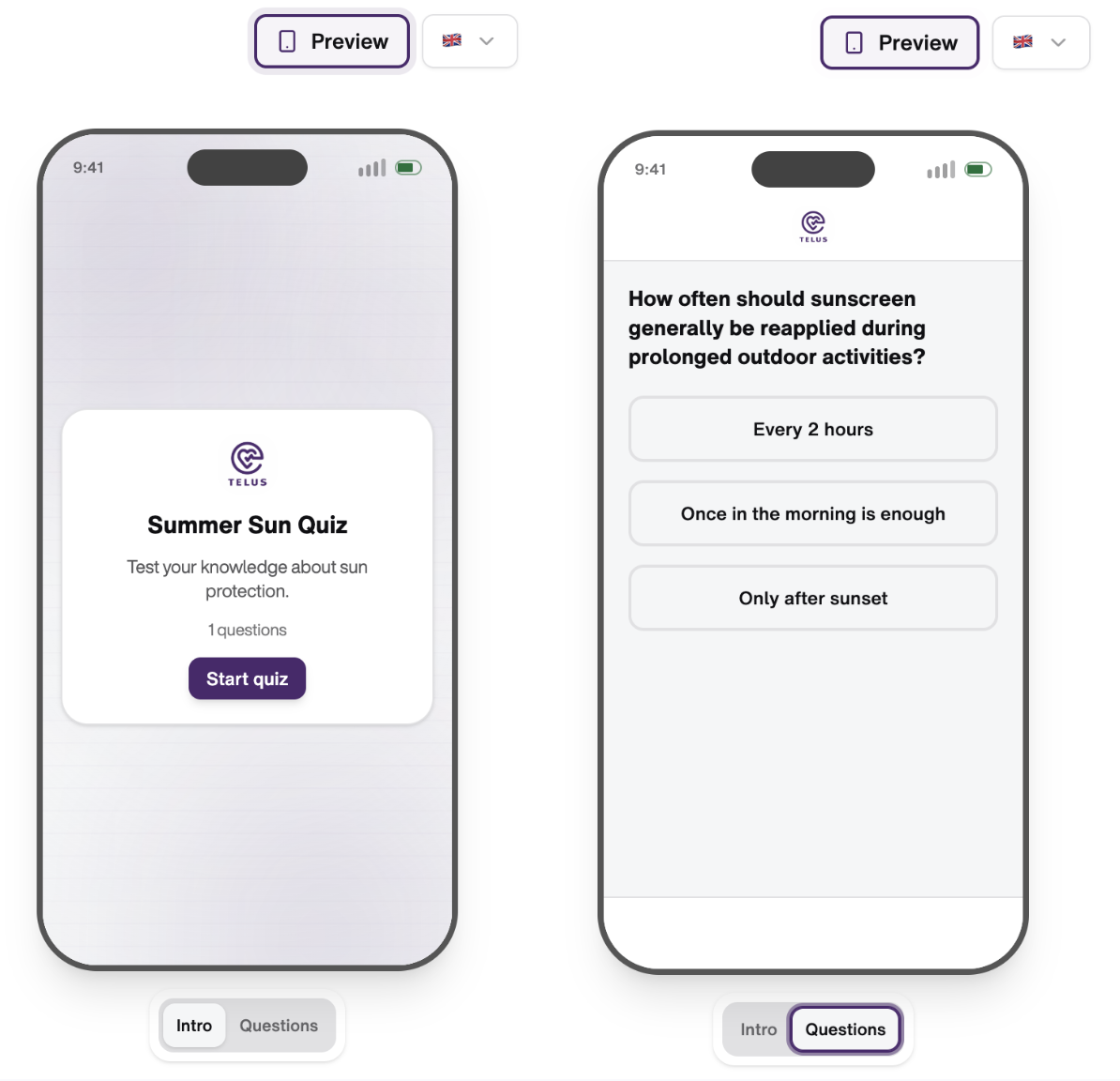
Step 2: Add Questions
Click “Next: Add Questions” in the bottom-right corner to begin creating your quiz questions.
Create a Question
Enter a clear and concise question.
Add the available answer options.
Use the green checkmark next to an answer option to mark it as correct.
Reorder answers using the arrow buttons.
A live preview on the right side of the screen shows exactly how employees will see each question in the app.
You can add as many questions as needed. Simply click Add Question and repeat the process.
Final Step: Save or Publish
Once all questions have been added, choose one of the following options:
Save as draft → The quiz will be saved in the Surveys & Quizzes overview and can be edited, previewed, or deleted later.
Save & Publish → The quiz will be published immediately and made available to employees.
Manage Quizzes
The Surveys & Quizzes overview displays all surveys and quizzes that have been created.
By clicking the three-dot menu next to a quiz you can:
Share the quiz via a public link, allowing employees who do not use the app to participate through their web browser.
Edit the quiz (if it is still available for editing).
Preview the quiz as it will appear on employees' smartphones or desktop devices.
Delete the quiz.
Create a Quiz Template
In addition to one-time quizzes, you can create reusable quiz templates.
To do so, click “Create New” and select “Quiz Template”. The creation process is identical to creating a standard quiz.
Quiz templates help you:
Reuse frequently used quiz formats.
Save time when creating recurring quizzes.
Maintain consistent quiz structures across your organization.
You can also define an estimated completion time, helping employees understand how long the quiz will take.
If the quiz is not yet ready to be published, activate the Draft option and continue editing it later. Draft quizzes can be previewed at any time from the quizzes overview
Best Practices for Using Quizzes
Unlike surveys, it may be beneficial not to limit the number of times employees can complete a quiz. Allowing multiple attempts gives employees the opportunity to reinforce learning and improve their results.
Example Quiz Topics:
Women's Day quiz on the topic of female health
Summer quiz on sun protection
Winter quiz on healthy seasonal vegetables
Quizzes can also be used alongside events, workshops, or health campaigns to reinforce key messages and help employees retain what they have learned in a fun and interactive way.
Maximize Participation
To achieve the highest possible participation rate, promote your quiz across multiple communication channels.
We recommend:
Creating a news article announcing the quiz.
Sending a push notification to employees.
Using teaser content to generate interest before launch.
Enabling the Publication via News & Push option when publishing the quiz.
You can further increase engagement by offering small prizes, recognition, or incentives for top-performing participants.
Was this article helpful?
That’s Great!
Thank you for your feedback
Sorry! We couldn't be helpful
Thank you for your feedback
Feedback sent
We appreciate your effort and will try to fix the article