The TELUS Health Engage Backoffice enables you to plan, manage and evaluate your company health measures in order to adapt them to the needs of your employees.
The ideal tool for this is the event calendar.
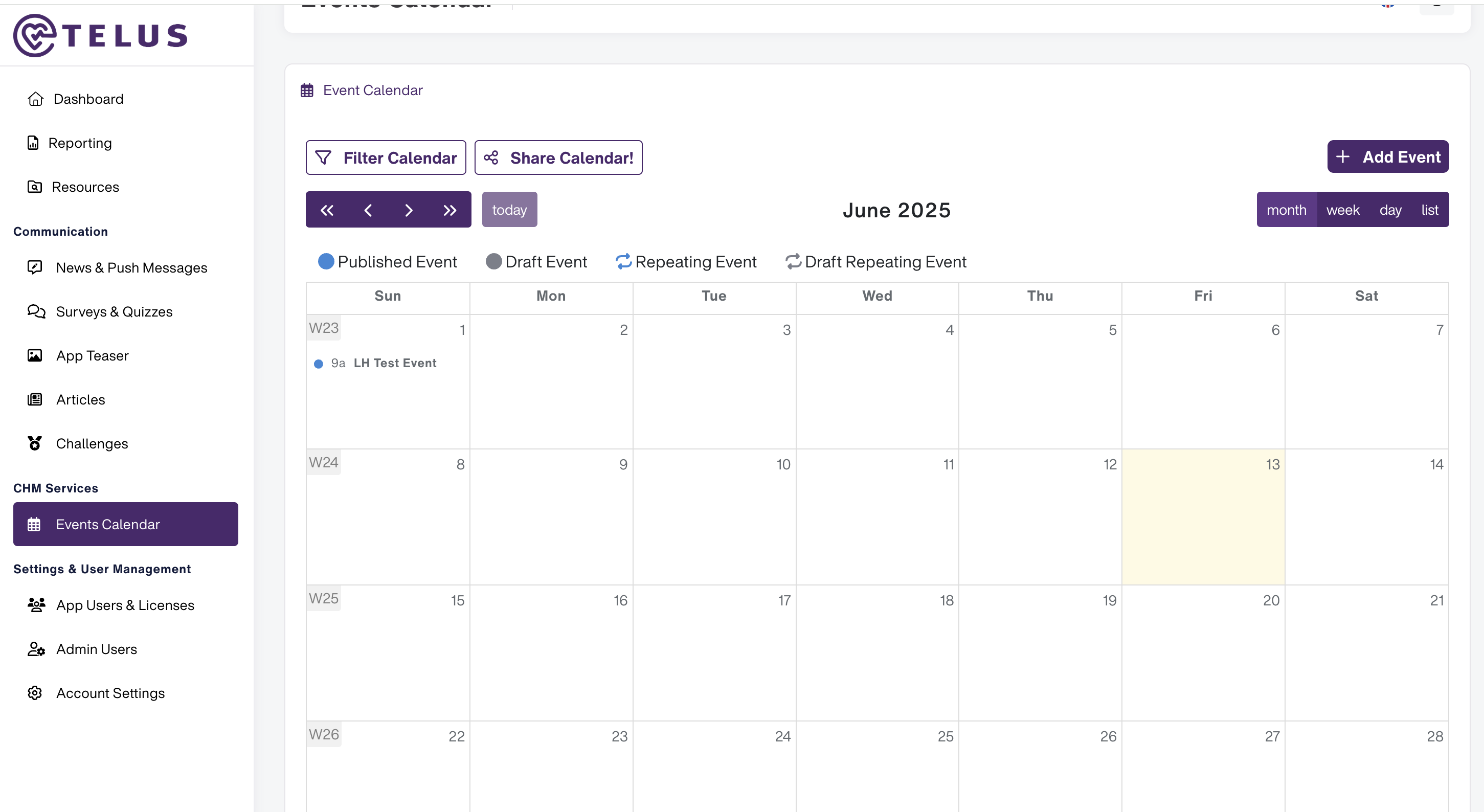
To access the event calendar, click on “Event calendar” in the left-hand menu under “CHM Services”. The dates of the events you have created yourself will now be displayed here.
You can use the buttons at the top left to filter your calendar by category or share it with your colleagues. To do this, simply click on “Share view” and you can now generate a link and share it by email, for example. You also have the option of only sharing a view for certain departments or locations if these have been created. To do this, simply select them from the list.
Various views are available in the event calendar. If you want to switch between monthly, weekly and daily views or an event overview as a list, simply use the blue buttons on the right-hand side.
Use the “<” and “>” buttons to go forward or back one month, week or day - depending on which calendar view is currently active. The “<<” and “>>” buttons move the display forwards or backwards a whole year. Clicking on the “Today” button takes you back to the current day.
a. Create a simple event
With the help of the event calendar in the TELUS Health Engage Backoffice, you can map your company health measures in the TELUS Health Engage app and communicate them to your employees.
To create a simple event in the calendar, click on “Event Calendar” in the menu on the left-hand side under “CHM Services”. Then click the “Add event” button on the right-hand side:
• If your event fits into one of the predefined categories, select it from the drop-down menu.
• If not, simply leave the selection at “No category”.
• Enter a title for your event in the input mask.
• Now determine the start and end time of your event.
• You can now use the fields below to enter a location for your event or a link. The link is suitable for further information or an online event.
• Now there is space for a short description of your event.
• You can create your event in different languages using the language selection at the top right. Select the language from the menu and enter your translation in the empty text fields.
• To collect feedback from your employees, you can check the box “Gather feedback from participants” in the advanced settings of your event and send a survey to all participants after the event. For this, please select one of your template.
• Save the event and publish it in the event calendar for your employees.
Would you like to create a recurring appointment, an appointment with registration or with several sessions?
Please note:
As soon as you have published your event, you can view it in the event calendar and edit it with a click.
You can no longer edit an event that has already started or that has registrations.
Tips:
Don't want to go live with your event straight away? Then click on “Save as draft” to continue editing later.
b. recurring events
Recurring events in the TELUS Health Engage Backoffice allow you to plan and communicate regular appointments in your organization with little effort.
To create a recurring event in the calendar, click on “Event calendar” in the menu on the left-hand side under “CHM Services”. Then click on the “Add event” button on the right-hand side. Now follow the steps from “Create a simple event” (LINK)
Now check the box “Repeat this event weekly” in the advanced settings. In the field that appears, enter the number of weeks you want the event to repeat. If it is infinite, simply leave the field empty.
You can create an appointment with registration or with several sessions.
Please note:
As soon as you have published your event, you can view it in the event calendar and edit it with a click.
You can no longer edit an event that has already started or that has registrations.
Tips:
Don't want to go live with your event straight away? Then click on “Save as draft” to continue editing later.
c. create an event with registration
If your event only allows a certain number of participants or you would like to get an overview of the participants, you have the option of creating an event with registration.
To create an event with registration in the calendar, click on “Event calendar” in the menu on the left-hand side under “CHM Services”.
Then click the “Add event” button on the right-hand side. Now, you can follow the steps.
Now check the box “Does the event require registration?” in the advanced settings. Now you can, if desired:
• limit the number of participants in your event.
• Automatically send a reminder to registered participants via push.
You can view the list of your participants after publication in the event. To do this, click on “Show event participants” at the top right of the event. A pop-up will now open with the participants.
Please note:
As soon as you have published your event, you can view it in the event calendar and edit it with a click.
You can no longer edit an event that has already started or that has registrations.
Tips:
Don't want to go live with your event straight away? Then click on “Save as draft” to continue editing later.
d. Create event with multiple sessions
An event with several sessions gives you the opportunity to offer your employees appointments for booking.
To create an event with multiple sessions in the calendar, click on “Event calendar” in the menu on the left-hand side under “CHM Services”. Then click the “Add event” button on the right-hand side. Now carry out the steps from “Create a simple event” (LINK).
Now check the box “Split event into multiple sessions”. Now you can:
• enter the number of sessions.
• enter the duration of the sessions.
As soon as you enter one of the two, the TELUS Health Engage Backoffice automatically calculates the other.
Note:
Creating multiple sessions does not work for events over several days. So if you have an event day with 5 sessions each for 3 days in a row, you create 3 individual events in the TELUS Health Engage Backoffice.
Note: You can no longer edit an event that has already started.
Tips:
Don't want to go live with your event straight away? Then click on “Save as draft” to continue editing later.
As soon as you have published your event, you can view it in the event calendar and edit it with a click.
Was this article helpful?
That’s Great!
Thank you for your feedback
Sorry! We couldn't be helpful
Thank you for your feedback
Feedback sent
We appreciate your effort and will try to fix the article